
ZTE F670L Router Login
The ZTE ZXHN F670L is an AC1200 dual-band GPON ONT commonly used in FTTH (Fiber-to-the-Home) networks worldwide. The F670L is a high-quality, stable, fiber-connected, long-range Wi-Fi device that is a good choice for home users, gamers, and small offices, thanks to its strong performance.
This entire 2026 guide will help you get your router, whether given to you by the ISP or self-provided, set up in no time, including setting up Hammerset up WiFi, updating passwords, setting quality of service features, VoIP support, all specifications, and troubleshooting.
You can also refer to our complete 1.0.0.0.1 Admin Login guide in case your router is set up with a different default IP address.
How to log into ZTE Router (Step-by-step Guide)
The ZTE router login can be accessed on any smartphone, laptop, or desktop using a browser such as Chrome, Safari, or Firefox.
Login Steps
- Plug your device into the router.
- Either via WiFi
- Or to any port of a LAN with a LAN cable.
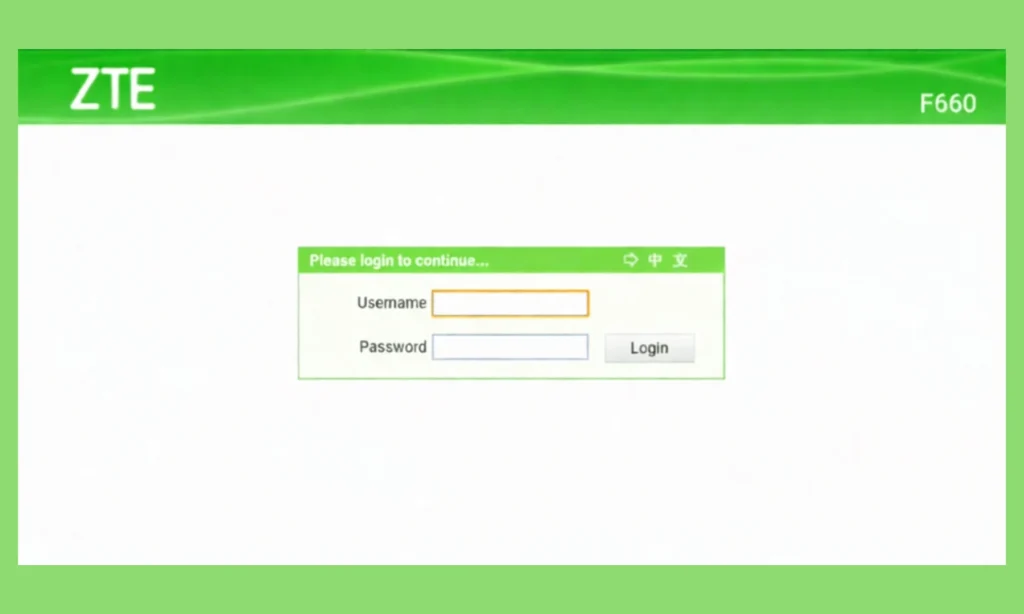
Click on your browser and type in the following ZTE IP addresses in the address block:
- Upon opening the login page, you can use the ZTE F670L default password and username:
- Username: admin
- Password: admin
- In case of a failure in the password, use this password that is frequently used in the ISP settings:
- Password: Web@0063
- Click Login:
If the credentials are correct, you will be redirected to the ZTE F670L Web GUI dashboard, where you can adjust ZTE WiFi settings, security options, LAN settings, etc.
If the default gateway doesn’t open the admin panel, you can also try accessing your router using 10.10.10.1 login page, which is commonly used by several fiber and Piso WiFi systems.
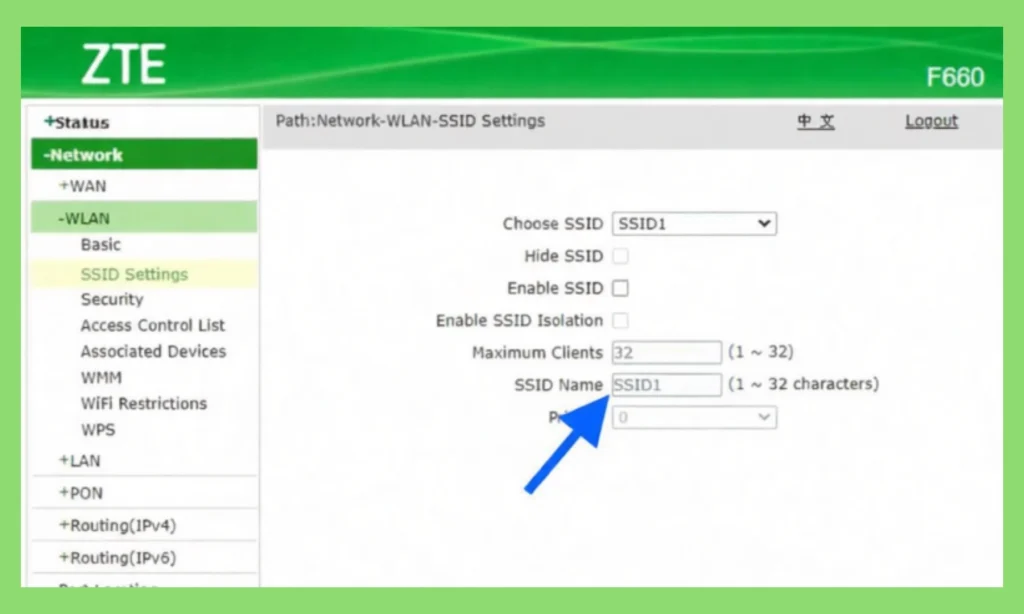
How to rename the WiFi Name (SSID) of ZTE F670L.
It is also easy to name your WiFi, which will help identify it more easily and make it look more personal. Here’s how to update it:
Steps to Change SSID
- Log in to 192.168.1.1, directed to the f670l admin panel
- Go to Network → WLAN
- Click SSID Settings
- Choose:
- SSID1 (2.4 GHz)
- 5G SSID1 (5 GHz)
- Enter your desired WiFi name.
- Click Submit
Your new SSID will take effect immediately, and the new name will be visible on all connected devices.
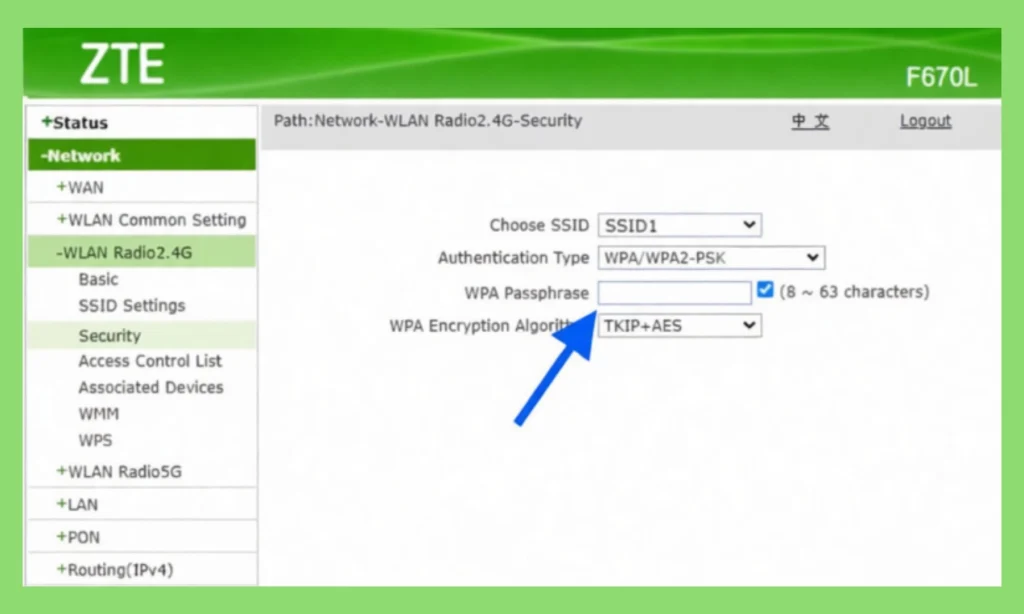
How to Change WiFi Password on ZTE F670L.
Using a strong Wi-Fi password will ensure that other devices cannot steal your bandwidth or access your network.
Procedures to change the WiFi password.
- Log in to the router.
- Go to Network WLAN security.
- Select SSID1
- Configuration Authentication Type WPA/WPA2-PSK.
- Enter your powerful new password in the WPA Passphrase Field.
- Click Submit
Your router will use the new password, and all connected devices will need to reconnect with it.
Things You Need to Know About the ZTE F670L Router
ZTE ZXHN F670L is a high-performance AC1200 Dual-Band GPON Gateway that supports Gigabit fiber. It is an amalgamation of high-end wireless technology, reliable fiber connectivity, and VoIP capabilities, allowing you to experience the full range of networks at home.
Its 2×2 MIMO antennas, 2×2 WiFi, and Gigafinally Ethernet ports make the F670L appropriate to:
- Online gaming
- 4K video streaming
- Multi-device households
- IPTV & VoIP services
- Small Office Internet Systems.
The F670L is an excellent combination of performance, reliability, and sophisticated features, whether for upgrading your home network or for equipment offered by an ISP.
Key Features of ZTE F670L
ZTE F670L is not just another GPON ONT; it is a multifunctional networking device that meets the requirements of modern families and small enterprises. The list below provides a detailed, comprehensive analysis of the features that enable the ZTE F670L to be among the most flexible and powerful routers in the category. You can be a tech, a gamer, or just someone who needs a stable, fast internet connection! The features listed below show why F670L should still be considered when installing FTTH.
1. Ultimate Wi-Fi Performance
ZTE F670L is a uniquely different mobile device in terms of wireless performance, featuring dual-band AC1200 Wi-Fi that provides a seamless experience across all devices and applications. The router operates simultaneously in the 2.4 GHz and 5 GHz frequency bands, which is an ideal compromise between long-range stability and high-speed performance.
Dual-Band AC1200 WiFi Explained
- 300 Mbps @ 2.4 GHz
The sub-2.4 GHz band has outstanding penetration and range. This band can maintain stable connectivity even in the presence of walls, floors, or barriers. It is slower than the 5 GHz band; however, it can be used for general browsing, smart home systems, IoT, and everyday internet activities.
- 866 Mbps @ 5 GHz
The 5 GHz band is much faster and provides much less interference. This is perfect for:
- Online gaming
- HD and 4K video streaming
- Video conferencing
- Downloading large files
- Low-latency applications
The combined speed of the two is up to 1200 Mbps, which guarantees a fast online experience across various users and devices.
2. MIMO Antenna Technology
The antenna of the ZTE F670L is 2×2 MIMO (Multiple In, Multiple Out), offering both better bandwidth and higher signal reliability. This technology enables several streams of data to be exchanged at the same time, increasing:
- Throughput
- Coverage area
- Signal stability
In practice, MIMO is used to ensure that your WiFi signal is strong, even in larger houses or offices with several rooms.
Multiple SSID Support
The router has multiple SSIDs per band, and this allows you to create:
- Individual guest networks.
- IoT-specific networks.
- An intranet for work or sensitive applications.
This enhances security and gives you better control over your WiFi environment.
Optional High-Gain Antennas (5 dbi )
Based on your ISP configuration, the ZTE F670L can be supplied with five dBi high-gain outer antennas, which significantly improve signal directionality and range. High-gain antennas are particularly useful in:
- Multi-story homes
- Nationwide offices with large coverage requirements.
- Regions that are disturbed by other apparatuses.
Built for Modern Homes & High-Density Usage
The homes of today have 10-40 devices connected simultaneously: TVs, smartphones, tablets, cameras, consoles, and smart appliances. The dual-band design of F670L can aid in traffic allocation and congestion reduction, ensuring each device is allocated sufficient bandwidth.
This ensures that the F670L is well-suited for multitasking and provides a lag-free, interference-free wireless experience.
3. Remote and Local Flexible Management
The ZTE F670L has one of the best selling points: its management flexibility, at least for the internet service provider who may need reliable remote administration. Nevertheless, remote support and easy-to-use GUI are also valuable for even home users.
Supported Management Protocols
OMCI (ITU-T G.988)
OMCI provides efficient configuration, monitoring, and diagnostics for GPON optical networks. This protocol ensures:
- Fluent delivery of fiber services.
- Interoperability with current OLT systems.
- ISP-driven automated configuration.
This saves time during installation and is also accurate in configuration.
TR-069 (CWMP)
ISPs can use this remote management protocol to:
- Monitor performance
- Diagnose network problems.
- Update firmware remotely
- Modify settings without visiting the on-site.
This is positive for users, since in many cases, problems can be resolved immediately, enhancing the reliability of the services.
Web-Based GUI
The built-in web interface is user-friendly. It allows users to manage:
- WiFi settings
- Parental controls
- Port forwarding
- Firewall policies
- LAN configurations
Non-technical users can make the necessary changes quickly.
Remote Firmware Upgrades
The F670L enables automatic or remote updating of the firmware, which guarantees:
- Better stability
- Improved security
- New features over time
ISPs can implement updates without involving the user to close device vulnerabilities and enhance network security.
Perfect ISP and Enterprise Deployments.
The F670L is a versatile and economical technological solution for service providers worldwide, thanks to its ability to integrate well into controlled networks and its support for standardized protocols and automation.
4. High Reliability and Safety features.
Fiber-optic devices require reliability, as they can be operated 24/7. The F670L has been designed for both durability and protection, ensuring stable, durable performance under a wide range of environmental conditions.
Dual-Image Firmware
Inthe event of a failure in the firmware update because of:
- Power loss
- Corrupted files
- Network interruptions
The router automatically reverts to a configuration firmware image. This prevents the device from becoming unusable and saves visits to the technician.
Advanced Heat Dissipation
Overheating is a common cause of router failure. The ZTE F670L uses:
- Optimized internal airflow
- Ventilation grids
- Efficient component layout
This, in turn, helps ensure stable functionality even during prolonged traffic, streaming, and gaming.
Lightning & Surge Protection
Surge protection layers are built into the router:
- 4 kV protection of the power adapter.
- Ethernet and telephone ports 1.5 kV protection.
This is very appreciable in areas where storms or unstable electricity give rise. The protection system will lessen the chance of component failure, enabling them to last longer.
Hardware Design Durable (Long-term) Physical.
The F670L is built with robust internal components and a high-quality plastic casing. This allows it to:
- Sustain long-lasting performance.
- Resist heat damage
- Stable fiber performance.
The combination of all these factors makes the ZTE F670L a good option for steady, heavy network use.
5. Advanced quality of service Support.
Quality of Service (quality of service) determines the way the network traffic is prioritized. The ZTE F670L also has an engine with an excellent quality of service that contributes to improving the overall internet performance of various applications.
Traffic Prioritization
The router may give preference to bandwidth to:
- VoIP calls (no echo or delay)
- IPTV (guaranteeing the absence of a buffer when playing video).
- Online gaming (latency and jitter minimization).
- HD & 4K streaming
This is particularly noticeable when the household has multiple users, and bandwidth competition can cause buffering and lag.
Assisted Scheduling Algorithms.
- SP (Strict Priority)
Prioritizes high-priority traffic.
- WRR (Weighted Round Robin)
Hands out bandwidth equally to various classes of traffic.
- SP+WRR Hybrid Scheduling
Balanced distribution and high-priority responsiveness.
Operator-Level Customization
ISPs can customize quality of service policies to correspond to:
- Local network conditions
- Offered service packages
- Device-specific requirements
- IPTV channel loads
Such fine-tuning leads to enhanced customer experiences and higher-quality service.
In some ISP configurations, especially with fiber connections, the router may use 192.168.100.1 as the default login IP
ZTE F670L Full Technical Specifications (2026)
Here’s an expanded, comprehensive list of specifications for easy reference.
Component | Details |
WAN | 1× GPON SC/APC |
LAN Ports | 4× Gigabit RJ-45 |
Phone Port | 1× RJ-11 (VoIP) |
USB | 1× USB 2.0 |
Buttons | WiFi, WPS, Reset, Power |
Antennas | External (optional internal) |
Power | 12V DC, 1A |
Dimensions | 205 × 120 × 28 mm |
Weight | 320g |
WiFi Specifications
- 802.11b/g/n @ 2.4 GHz (2×2 MIMO)
- 802.11a/n/ac @ 5 GHz (2×2 MIMO)
- Speeds up to 1200 Mbps
- WPA/WPA2 encryption
- Up to 4 SSIDs per band
VoIP Features
Carrier-grade VoIP capabilities include:
- SIP (RFC 3261)
- Codecs: G.711, G.729, G.722
- Echo cancellation technology
- Call waiting & forwarding.
- Call transfer support
- 3-way conferencing
Networking & Software
- IPv4/IPv6 dual stack
- NAT, ALG, and DHCP server/client
- PPPoE client/passthrough
- IGMP snooping & proxy (for IPTV)
- MLD snooping
- SNTP for time sync
- VPN passthrough (IPSec, PPTP)
Environmental Conditions
- Operating temperature: 0°C to 40°C
- Humidity: 5%–95% non-condensing
Typical Use Cases of ZTE F670L
The router suits a wide range of environments:
- Home fiber broadband
- Small office networks
- IPTV streaming
- VoIP telephony
- Low-latency gaming
- WiFi coverage expansion
Its combination of robust Wi-Fi, fiber-optic input, and Gigabit LAN ports makes it a strong all-rounder for modern network requirements.
Troubleshooting Guide (Common Problems & Fixes)
1. Router Login Not Working?
Solutions:
- Clear your browser cache
- Try a different browser.
- Restart the router
- Reset using the physical button (10 seconds)
- Confirm correct login IP: 192.168.1.1 or 192.168.0.1
2. Slow WiFi Speeds?
Try:
- Switching to 5 GHz
- Changing the WiFi channel
- Moving the router to an open area
- Removing obstructions or thick walls nearby
3. Forgot Your WiFi Password?
Steps:
- Log in to 192.168.1.1
- Go to WLAN → security.
- View the WPA Passphrase
FAQs
What is the default login username and password for the ZTE F670L?
Username: admin
Password: admin
If it doesn’t work, try Web@0063.
What is the default IP address for the ZTE F670L router?
You can log in using:
- 192.168.1.1
- 192.168.0.1
Why can't I access 192.168.1.1 on my router?
You might be using the wrong IP, not connected to the router, or the router settings were changed. Try reconnecting, clearing your browser cache, or restarting the router.
How do I change the WiFi name (SSID) on the ZTE F670L?
Go to:
192.168.1.1 → Network → WLAN → SSID Settings
Select your SSID, type the new name, and click Submit.
How do I change the WiFi password?
Go to:
Network → WLAN → Security
Choose your SSID → Set WPA/WPA2-PSK → Enter new password → Submit.
Why is my ZTE F670L WiFi slow?
Use the 5 GHz band, change the WiFi channel, move the router to an open area, or update the router firmware.
Final Thoughts
The ZTE ZXHN F670L is a reliable, high-performance GPON ONT/router built for modern connectivity needs. With fast AC1200 dual-band WiFi, advanced quality of service, VoIP compatibility, and robust remote management options, it offers the perfect combination of speed, stability, and flexibility. Whether you’re streaming 4K content, gaming online, or managing multiple smart devices, the F670L delivers dependable performance suitable for both home and small-office environments.

