
Converge Router Login
Firstly, to control your internet at home, you need to learn how to log in to Converge. If you need to change your Wi-Fi password, secure your network, check which computers are connected, or check your account, it is helpful to know how to log in. When connecting a new router or troubleshooting the Internet, users typically seek router access details, router passwords, and router IP addresses.
It consists of two systems: the router login and the converged portal. Using the router login, you can modify WiFi settings and security. The portal allows you to view your bills, usage, and account details. This guide explains both. We would begin with router access since that is predominant.
You are in the right place. If you do not know how to log in to the administration, how to change the WiFi password, or what the username and password are. We should take it all step by step.
Requirements Before You Log in to the Converge Router
The router login page requires a couple of things before it can be opened.
Utilize a smartphone, laptop, desktop, or tablet.
Connect the device to your Converge network via Wi-Fi or cable.
When performing significant changes, use a wired cable to prevent disconnections.
Use a web browser, such as Chrome, Edge, Firefox, or Safari. No special app is needed.
The most essential is the router's IP address, which serves as the default gateway.
Explained Converge IP Address and Default Gateway
The router’s IP address leads to the login page.
It depends on the router’s brand.
Converge default gateway addresses that are most frequently used are:
Only one will work. If you enter an incorrect IP, the page does not load.
- Huawei routers usually use 192.168.100.1.
- It is common to use 192.168.0.1 or 192.168.1.1 with fiberHome and TP-Link routers.
- In case of doubt, check the sticker on the back or bottom of the router.
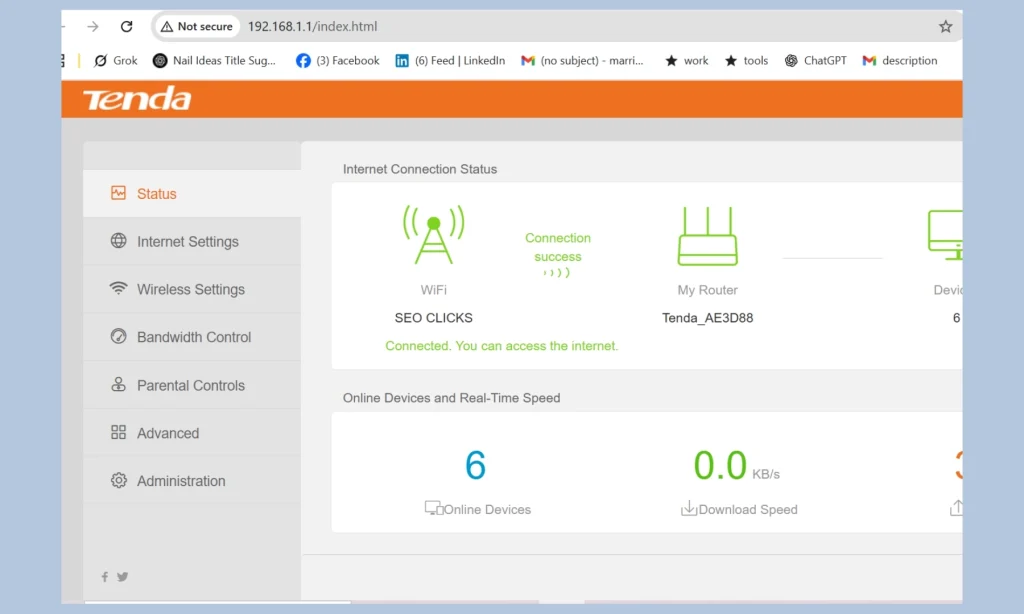
Relevant Router Brands
If using a secondary router, refer to the TP-Link router login.
This setup is a great alternative to the PLDT router login system.
Guide on How to Access the Converge Router Login
These are the steps followed to open the router login page.
- The first is to connect to the Converge WiFi, or insert a LAN cable into the router.
- The next step is to open a browser, enter the router’s IP address (e.g., 192.168.1.1) in the address bar, and press Enter.
- Upon loading the page, a login screen appears. There should be a username and a password.
- Once you have typed in the correct information, hit the Login button. You will be presented with the router dashboard, where WiFi and network settings are.
Converge Login Username and Password
The router’s brand and model determine the username and password. Many defaults are simple.
Popular combinations of defaults are:
Username: admin | Password: admin
Username: user | Password: user
Username: admin | Password: admin123
Username: user | Password: user1234
Admin/admin is usually the default password for Huawei routers. Some models use the admin123 or root settings.
More recent routers can have a special password printed on the label to enhance security.
In the case of non-working with the default, refer to the router sticker; it contains the correct details.
Default Password and Reasons as to Why you Must Change it
The Converge default password will only be used once. When you go, someone on your WiFi might alter the settings. The router is secured by changing the admin password.
Switching the WiFi password makes your internet safe. Both are important. The change of password is usually assumed to be a single step by the user.
In fact, there are two passwords:
- The login password of the router
- Internet WiFi password.
Updating to be entirely secure.
If the default Converge IP address doesn’t open the dashboard, try accessing the 192.168.8.1 admin login page, which is commonly used by several router models.
How to Converge Change Password
Changing the WiFi password is the same process for all routers.
After logging in, locate the Wireless, WLAN, or WiFi Settings menu.
Find the SSID (Wi-Fi name) and the password.
Enter a tough password that is hard to guess. It shall consist of lower and upper case letters, figures, and symbols.
Save the changes. The router can reboot, and all the devices will require connecting to the new password.
This technique applies to Huawei, ZTE, FiberHome, and TP-Link routers.
How to Change Wifi Password Converge Using Phone
Many users enjoy controlling their network with a smartphone. The positive thing is that the process of walking through converging wifi passwords with the phone is no different.
Connect your phone to the Converge WiFi. Open a mobile web browser, like Chrome or Safari. Type the router's IP address into the address bar.
Use the admin credentials to log in. After entering the dashboard, go to wireless settings and change the password.
The router interface also adapts to mobile screens by default, so there's no problem with configuration on a computer.
Converge Admin Password vs WiFi Password
Another mistake is confusing the converged admin password with the WiFi password.
The router settings are restricted using the admin password. Who is allowed to access your internet is controlled by the WiFi password.
The WiFi password and the admin password are different and not interchangeable; altering the WiFi password does not change access to the WiFi. To ensure maximum protection, the two must be updated.
Huawei Converge Login Overview
Converge uses Huawei routers extensively, and thus, the Huawei Converge login is given special consideration.
Huawei routers usually use:
- IP address: 192.168.100.1
- Username: admin
- Password: admin or admin123
After logging in, WiFi options are usually divided into 2.4 GHz and 5 GHz. Remember to update both if you are using dual-band WiFi.
Huawei interfaces are clean and straightforward, allowing one to change passwords, block devices, and adjust security settings without difficulty.
Converge Login Not Working? Common Issues and Reasons
Some users experience difficulties accessing the Convergex router login page even after completing the steps correctly. Minor technical failures often cause these problems and do not require a professional solution.
This is one of the most common causes, and it includes entering the wrong converged IP address. Converge does not have the same default gateway on all devices because it uses different router brands. The second common reason is incorrect login credentials, particularly after the converged admin password has already been modified.
The loading of the login page can also fail due to browser issues, erratic WiFi connections, or VPNs.
How to fix Converge Router Login Problems
If the converged login admin page fails to open or continues to display errors, the following solutions may help.
Double-Check the IP Address
Make sure you are typing the correct IP address into the browser’s address bar, not the search bar. Test the standard gateways sequentially: 192.168.1.1, 192.168.0.1, 192.168.100.1, and 192.168.254.254.
Reboot the Router and the Device
Disconnect the router, leave it off for approximately 15 seconds, then restart. Reboot your phone or computer, then resume.
Clear Browser Cache or Use Another Browser
Outdated cache files can block router pages. Clean your browser cache or switch browsers to clear the connection.
Block VPN or Browser Extensions
Local IP addresses can be interfered with by VPNs and security extensions. Switch them off while accessing the converged admin login page.
Use a LAN Cable
When the WiFi becomes unreliable, simply connect your PC to the router with an Ethernet cable, and the connection will be more reliable, allowing a successful login session.
Determining How to Find Your Real Converge Default Gateway
If all the typical IP addresses fail, you can use the specific default gateway configured on your router.
On Windows
Open the Command Prompt, type ipconfig, and press Enter. You can find the Default Gateway under your active network.
On macOS
The next step is to go to Network Settings, WiFi or Ethernet, and ensure that the Router field is checked.
On Android or iPhone
Click Open WiFi, tap your connected network, and find the Gateway or Router details.
The figure indicated the correct IP to use for the Convergex router login.
How to Reset the Converge Router (Factory Reset)
- A factory reset is the only option if you are unable to access your Convergex admin password or even the router.
- On the router, find the little reset button or pinhole. Use a pin and press it for 10-15 seconds. Discharge it on the router’s restart; the lights will restart.
- All of the custom settings would be lost after a reset. You will be able to get back in using the default password for the Converge and reset your Wi-Fi settings.
Converge Users' security Advanced Tips
Changing passwords is not the only step to securing your router.
- Never forget to change the WiFi password and the password to the administration area. Encryption should be WPA2 or WPA3, not the outdated security modes. Turn off WPS when it is turned on because it can be used.
- Regularly check the devices connected to it and delete users who should not be there. Turn off remote administration access when not in need. These measures significantly minimize the exposure to unauthorized access.
Converge Portal Account Management Directions
The Converge portal is independent of the router administration panel and is used to administer your internet account.
The portal allows users to access their billing statements, payment history, usage, and support. This login has no impact on WiFi or router settings.
Creating the Converge Portal and log-in
Go to the official portal site and create an account with your registered Converge information. After registering, log in with your email or username and password.
Once logged in, you are greeted with your own dashboard, which includes all the tools related to your account.
Features Within the Converge Portal
The portal enables you to monitor existing and previous bills, download statements, and make payments online using different payment methods. You can also verify your service plan, upgrade, and data usage.
Support tickets can be filed directly through the portal, so there is no need to call customer service to report a problem.
Converge Customer Support: When to Call
If a router reset and login do not resolve the issue, fix the errors. Converge support can be reached via a variety of channels.
The hotline ( (for landline) or (02) 8667 0848 through mobile), email (customercare@convergeict.com), live chat (www.convergeict.com), and mailing to their official Facebook page (facebook.com/ConvergeICTOfficial.) are all available to you. The portal is, in most cases, the quickest to use in matters touching on the accounts.
FAQs
What is the default Converge admin login?
It depends on the router brand. Standard defaults include admin/admin or user/user, but newer routers use unique passwords printed on the device label.
Why can't I access the Converge router login page?
This usually happens due to an incorrect IP address, wrong login credentials, unstable connection, or browser issues.
How do I change my Converge WiFi password?
Log in to the router admin panel, open wireless settings, and update the password. This works on both computers and phones.
Is the Converge portal the same as router login?
No. The portal manages billing and account details, while the router login manages WiFi and network settings.
What should I do if I forget my admin password?
Perform a factory reset and log in again using the default credentials.

